Google Sheets integration
Sync Transactions Into Google Sheets
Connect Google Sheets with ApiPay to create an automated transaction ledger and append new bank transactions as soon as ApiPay receives them.
Google Sheets integration
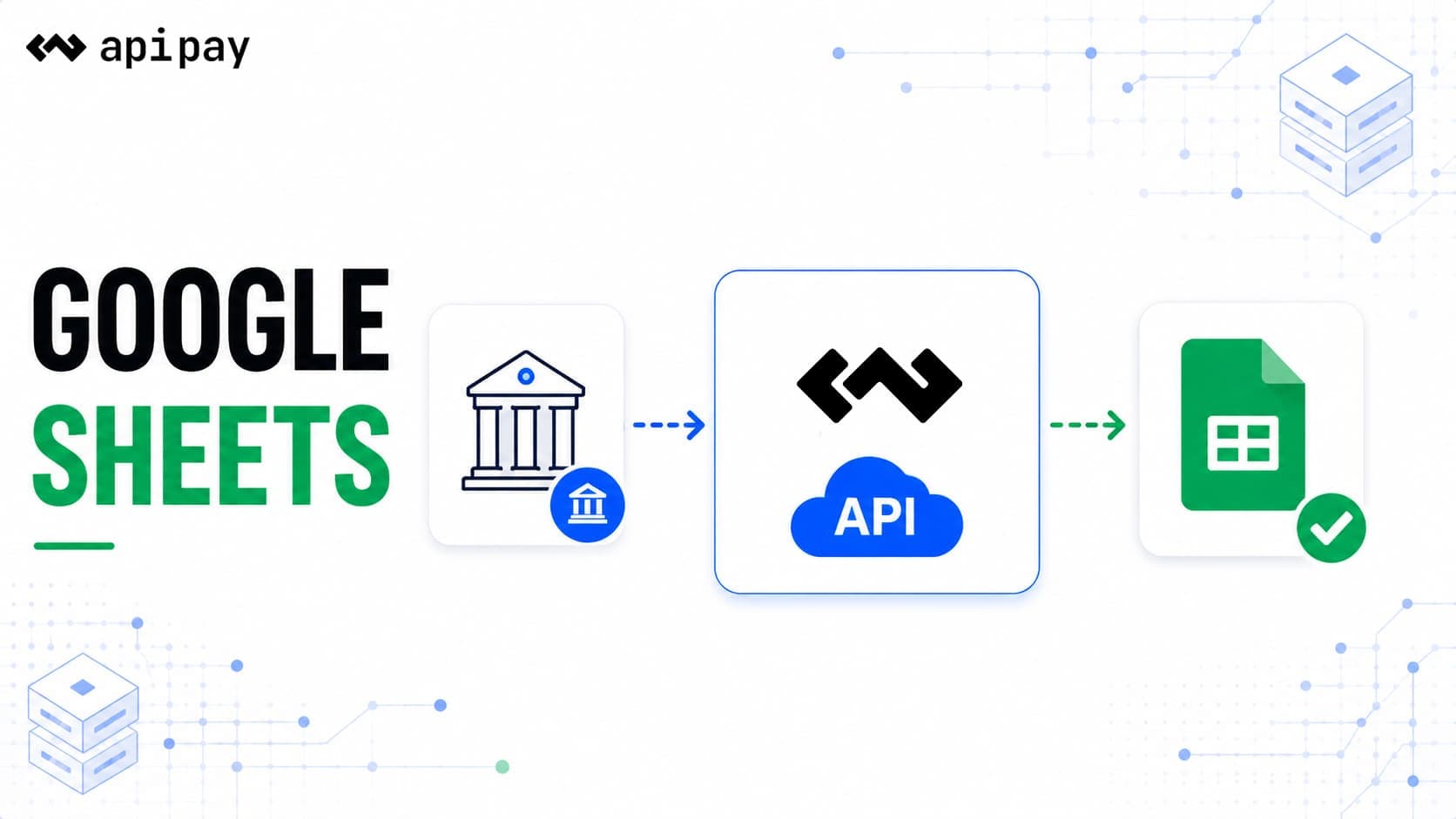
Google Sheets integration features
Secure Google OAuth connection from the ApiPay Dashboard
Automatic ApiPay Transactions spreadsheet creation
Rows include transaction ID, amount, type, date, status, content, and reference code
Queue-based syncing for new transactions after connection
Dashboard status for spreadsheet name, sheet tab, last sync, and connection state
Sync error visibility when Google Sheets updates need attention
Direct spreadsheet link from the Dashboard
Disconnect control whenever you no longer want Sheets syncing
How it works
01
Connect Google Sheets
Open the ApiPay Dashboard, go to Google Sheets, and start connecting your Google account.
02
Authorize the ledger
Allow ApiPay to create and update the spreadsheet so it can initialize the ApiPay Transactions ledger.
03
Receive new rows
New bank transactions after connection are appended to Google Sheets for tracking and reconciliation.
Frequently asked questions
Keep a live transaction ledger
Connect Google Sheets so operations, accounting, and sales teams can track bank transactions in a familiar spreadsheet.
Connect Google Sheets